
Administrator GuideLast updated: 2026-03-06
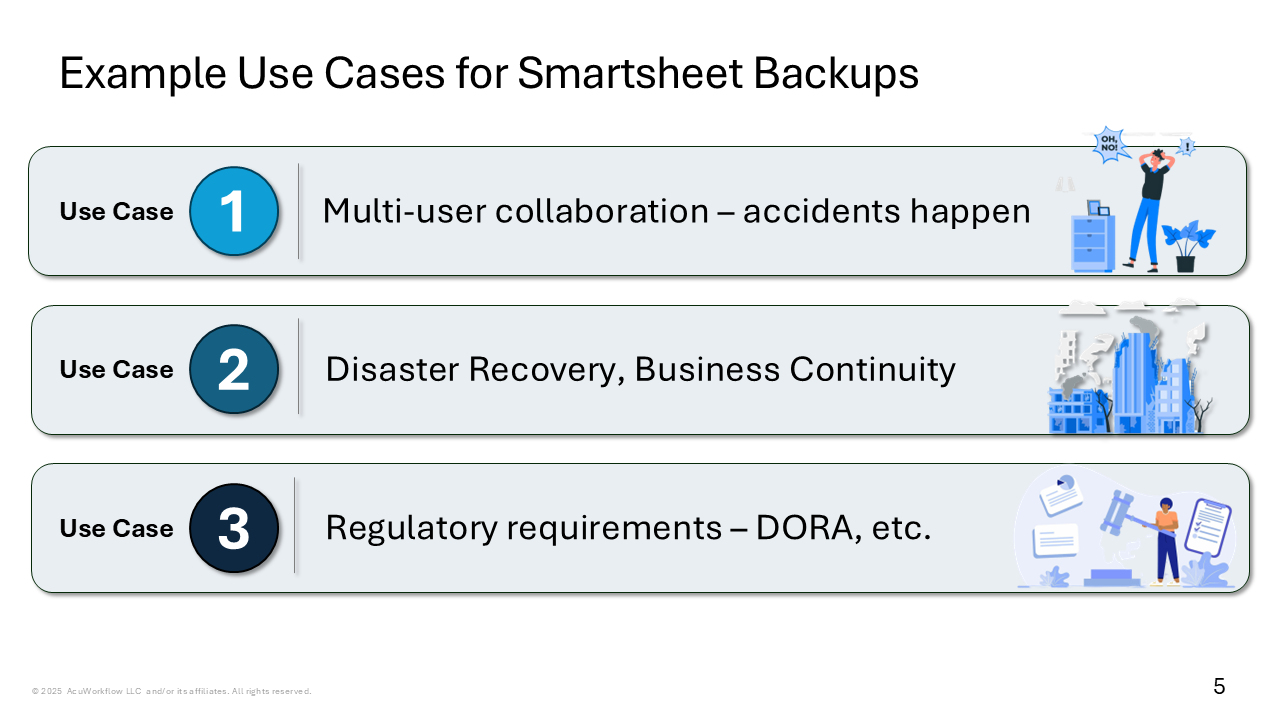
Welcome to the SmartBackup Guide for Administrators. SmartBackup is the solution for Smartsheet customers who want to use the industry’s leading platform for securing their Smartsheet data. SmartBackup has been designed to address three primary use case: Multi-user collaboration, DRP and BCP Requirements, and Regulatory, Auditing, or eDiscovery needs.
Introduction
This section provides information for SmartBackup Administrators on the topics of restoring deleted Smartsheet data or reverting to an earlier version of a user's Smartsheet data. In these cases, an Administrator will need to be familiar with the SmartBackup End User Restore Guides, so that they can assist end users with restoring their own data using the backup copies in their SmartBackup vault workspace.
We also strongly recommend that you share the link to the End User Restore Guides with your Smartsheet users, so that they can review and use the content themselves when needed.
And as an Administrator, you will also need to be familiar with the processes for restoring sheets and data using the online backup copies created by LiveCopy and the offline backup copies that are saved outside of Smartsheet using the ShadowCopy function.
SmartBackup Architecture
SmartBackup is a software application that is downloaded from the AcuWorkflow website and installed on a local Windows computer under the full security, control and management of the customer or the customer’s IT team. The software can be installed on a physical computer, or it can be installed on any Windows instance, including virtual machines on local or cloud-based servers and services such as AWS and Microsoft Azure.
All customer data is always under full control of the customer SmartBackup administrator, or IT team. This provides the highest possible security for customer data.
It is important to remember that when using the ShadowCopy offline backup function, you will be creating exported copies of potentially ALL your organization's Smartsheet sheets and data. This is why it is imperative that the server and disk location used for SmartBackup is secured correctly.
SmartBackup includes the following key functional areas:
- A - Each user's Smartsheet area; including Home, Workspaces, folders, and data.
- B - Each user's designated Backup Vault area.
- C - Your organization's designated external storage area for Export and ShadowCopy.
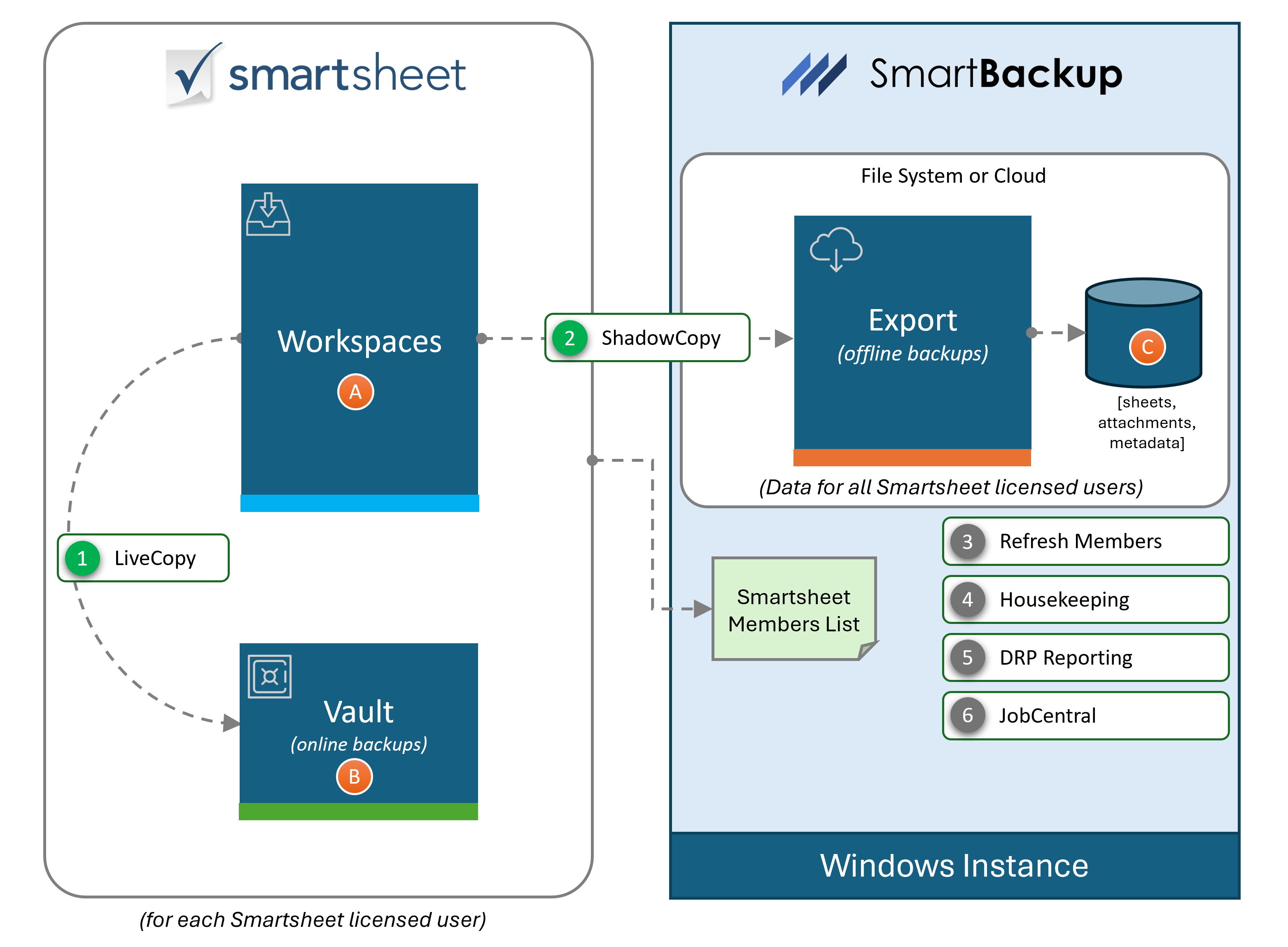
- LiveCopy - Obtains a list of all workspaces and assets in “A”, then decides what to backup based on what was recently modified and creates an online backup copy of those items in “B”, the Vault. At any time, a user can restore deleted or damaged data in “A” by copying the data from the most recent online backup copy in the vault, “B”. Older copies are automatically purged from the Vault over time to ensure that the Vault does not fill with old redundant copies.
- ShadowCopy – When it runs, the ShadowCopy function identifies Sheets that meet the job criteria, and it creates offline backup copies of those Sheets and Attachments, together with all available "metadata", and saves them to the designated Export area, “C” on the Windows instance.
- RefreshMembers - This function is designed to refresh the list of Members (or users) from Smartsheet. It can be run as a separate job, independently of other SmartBackup functions, ether by enabling it in Housekeeper Services or by scheduling it using Windows Task Scheduler. When it runs, Refreshmembers pulls a new list of all current Members from Smartsheet and updates the list in SmartBackup.
- Housekeeping Services - This is a new scheduling capability built directly into SmartBackup. It allows for SmartBackup Admins to easily select key functions to run on a set schedule. When a function is enabled, the associated function or RunBook will run at the specified day and time. Note that the SmartBackup Console must be active in order for Housekeeping Services schedules to run.
- DRP Reporting - This is another new function incorporated into SmartBackup. It is designed to generate a set of reports that can be used to support audit trail and recovery efforts. These reports currently include a Groups Report - which contains a list of all the groups, a Group Members Report - which contains a list of groups and associated members, and a Users Report - which contains a list of all the Users at the time the report ran.
- JobCentral - This is the new basis for all SmartBackup Reporting and Notifications going forward. JobCentral is a standalone function that can be scheduled like all other SmartBackup functions. When called, it takes provided job information and saves that information to a designated Workspace/Sheet in Smartsheet. That Sheet can then be used to feed into Reports, Widgets, and a Dashboard to provide SmartBackup Admins with a comprehensive and fully customizable Status and Reporting solution for SmartBackup and any other service. All alerts, notifications, and status emails are then generated by Smartsheet - and can be configured as needed.
More details about each of these functions is available in the SmartBackup Documentation pages.
Restore Guide for Administrators
Then the next step will be to study the following SmartBackup Detailed Restore Guide. This guide covers both scenarios of restoring using the online backup copies created by LiveCopy and saved in the vault workspaces, and also restoring sheets and data using the offline backup copies saved externally using the ShadowCopy function or from files that were exported using High Speed Offloader/Onloader (HSO).
📄 Download SmartBackup Admin Restore Guide (PDF)We have included additional Administrator Guides in this section below, which are focused on best practices for Smartsheet deployments that have an impact on the configuration of your SmartBackup deployment.
Troubleshooting Guide
The SmartBackup Troubleshooting guide is an aid for SmartBackup Administrators that can be used when you encounter issues with SmartBackup. Consult this guide before contacting AcuWorkflow for support.
NOTE: There are now two versions of the troubleshooting guide - one for SmartBackup R10 and earlier, and one for SmartBackup R11 and higher.
SmartBackup R10 and earlier:
📄 Download SmartBackup Troubleshooting Procedure - R10 and earlier (PDF)SmartBackup R11 and above:
📄 Download SmartBackup Troubleshooting Procedures - R11 and above (PDF)As a SmartBackup Administrator, the first step will be to review all of the materials and videos provided in the SmartBackup End User Restore Guide section.
Smartsheet File Attachments Storage Guide
For Smartsheet customers, one of the great features available in the platform is the ability to attach an unlimited number of attachments to a sheet. However, if you are using this feature extensively, you should be aware that you will encounter significant challenges in the future if you would also like to back up your data or eventually move to a different platform.
In this guide, we will be describing several use cases that we have encountered where Smartsheet customers are using the “attach file to sheet” feature extensively. We will discuss the resulting challenges and will propose several alternative solution approaches to consider.
📄 Download Smartsheet File Attachments Storage Guide (PDF)